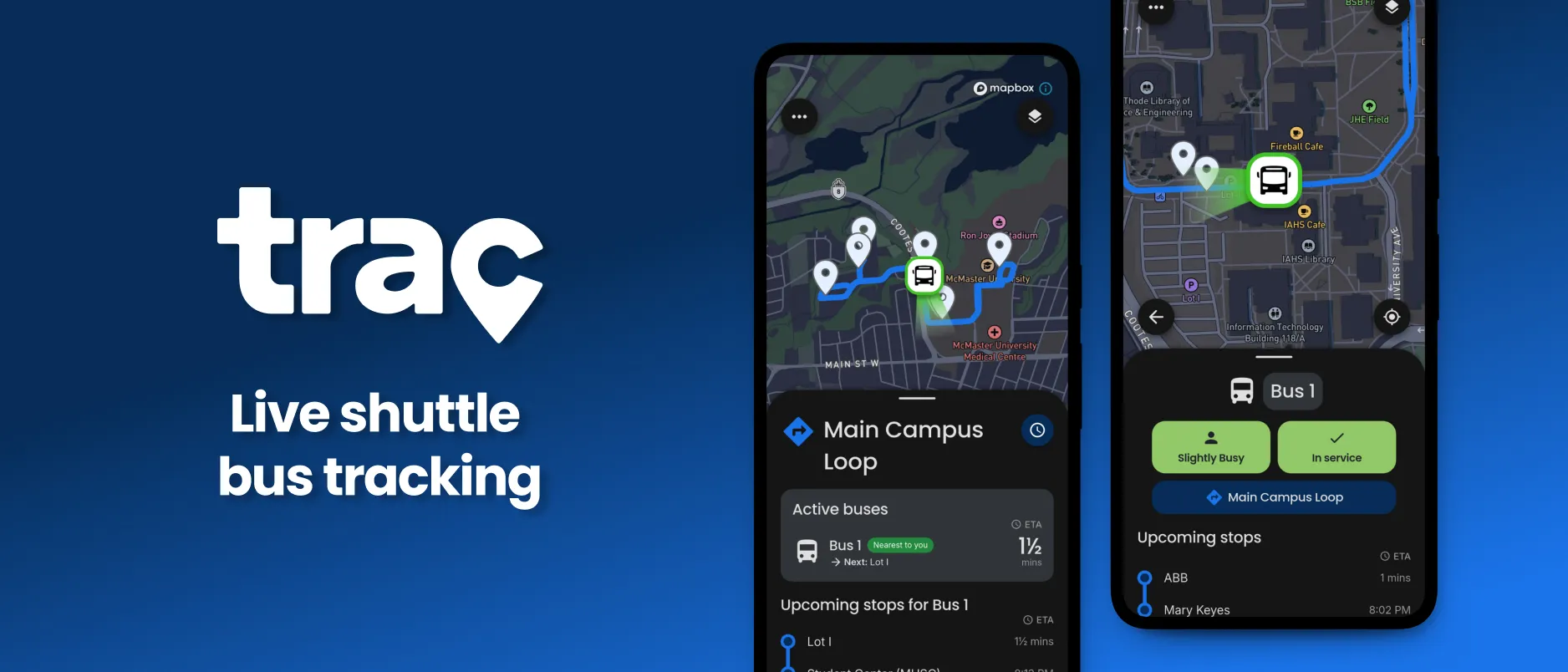
Trac is a platform that provides live shuttle bus locations, real-time ETAs and up-to-date service information.
This case study covers the design process for the Trac Commuter app. Some technical details and internal information can’t be shared. To learn more about Trac and its shuttle tracking service, visit tracinc.ca.
Hundreds of students at McMaster University use the campus shuttle bus service every day to move between the main campus and off-campus parking lots, roughly a 15 minute walk.
Not knowing where a bus was, or when it would arrive, made the choice between waiting at the stop and committing to the long walk much harder, especially in bad weather.
Trac Commuter is a mobile app that shows commuters where nearby shuttles are, estimated arrival times at every stop, live service alerts and up-to-date service information. It works alongside the Trac Driver app, which lets shuttles broadcast their live location along with their availability and how busy they are.
To shape a solution around commuters’ needs, we put QR-code surveys at shuttle stops around campus to reach people actively riding. The goal was to understand what frustrated them about the service, and what they would want from a tracking app.
With 100+ responses, the frustration was clear: 45% of commuters said they “always” missed their intended bus, and nearly 30% regularly waited more than 20 minutes.
“86% said they would plan their commute around real-time arrival estimates.”
Rider survey, 100+ responses
Riders weren’t asking for a feature-rich app. They wanted to know one thing: when is my bus coming? From the survey we defined the core of the commuter app: service information for nearby routes, stops and buses; live bus locations; arrival estimates; bus details like occupancy and availability; and live service notifications.
With the main features prioritized, we settled on a mobile app with a map-like interface for real-time information about buses, stops and routes. Early sketches used a details panel below a live map, so people could interact with the map and see more below it.
This pattern is common in transit and navigation apps like Google Maps and Transit, and it was the most intuitive way to communicate live service information.
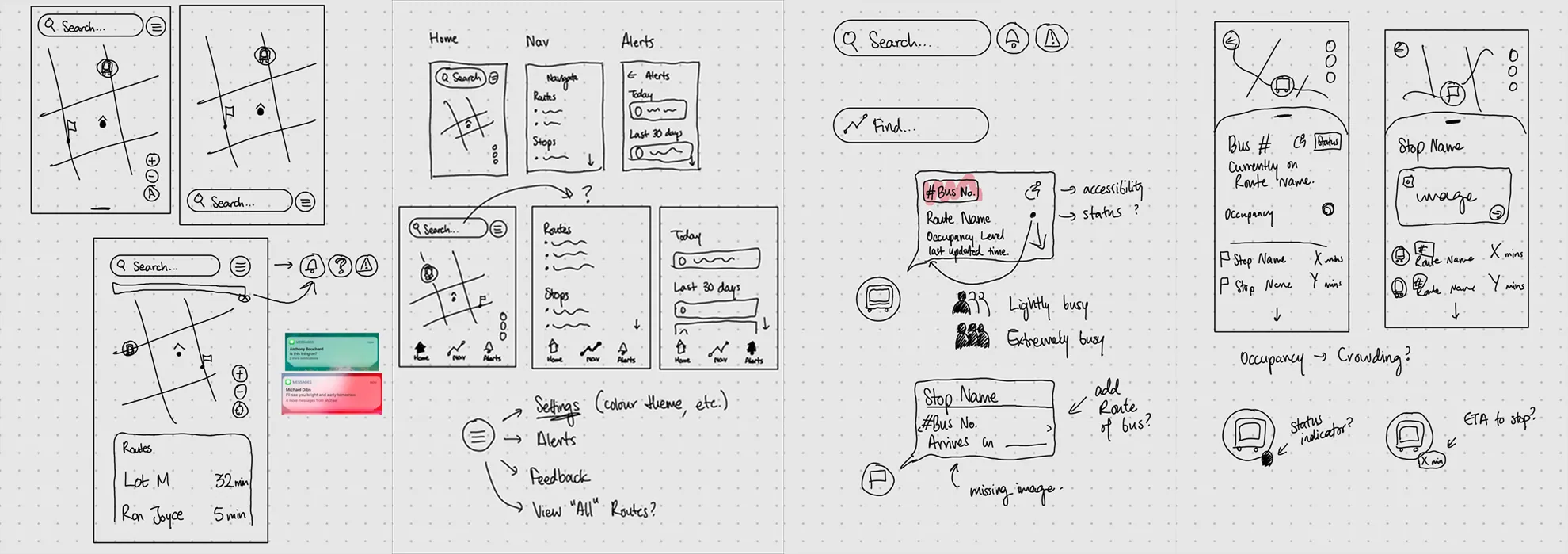
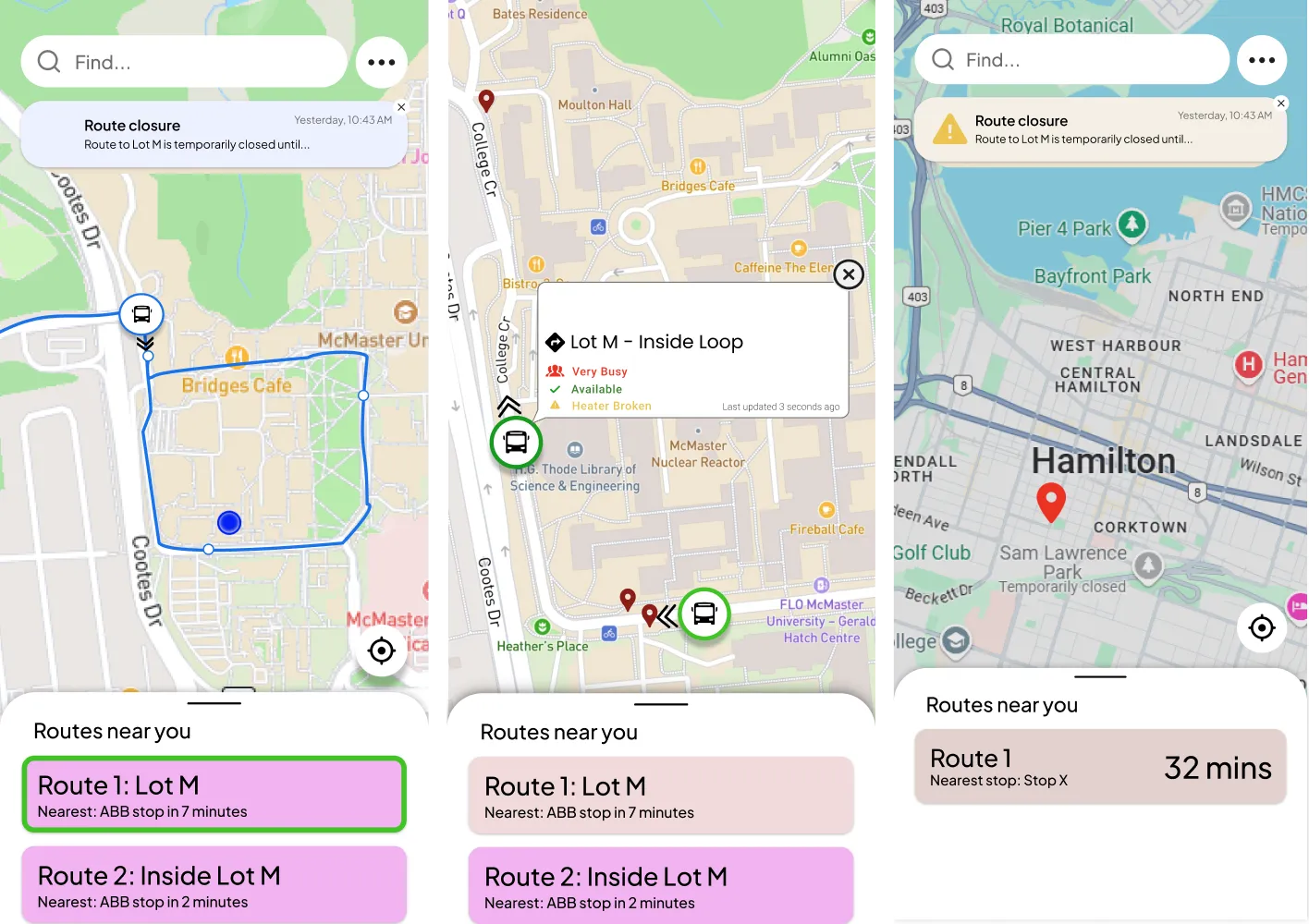
The main interface focused on buses, stops and routes on the map, with their details in a small floating panel or the main lower panel. To match other navigation apps, routes sat in the lower panel with ETAs at a glance.
Over several weeks the design moved from low to high fidelity, keeping the same core: a map with a details panel. Eventually all information moved into the bottom panel for consistency, and the app settled into four main views: home, route, bus and stop.
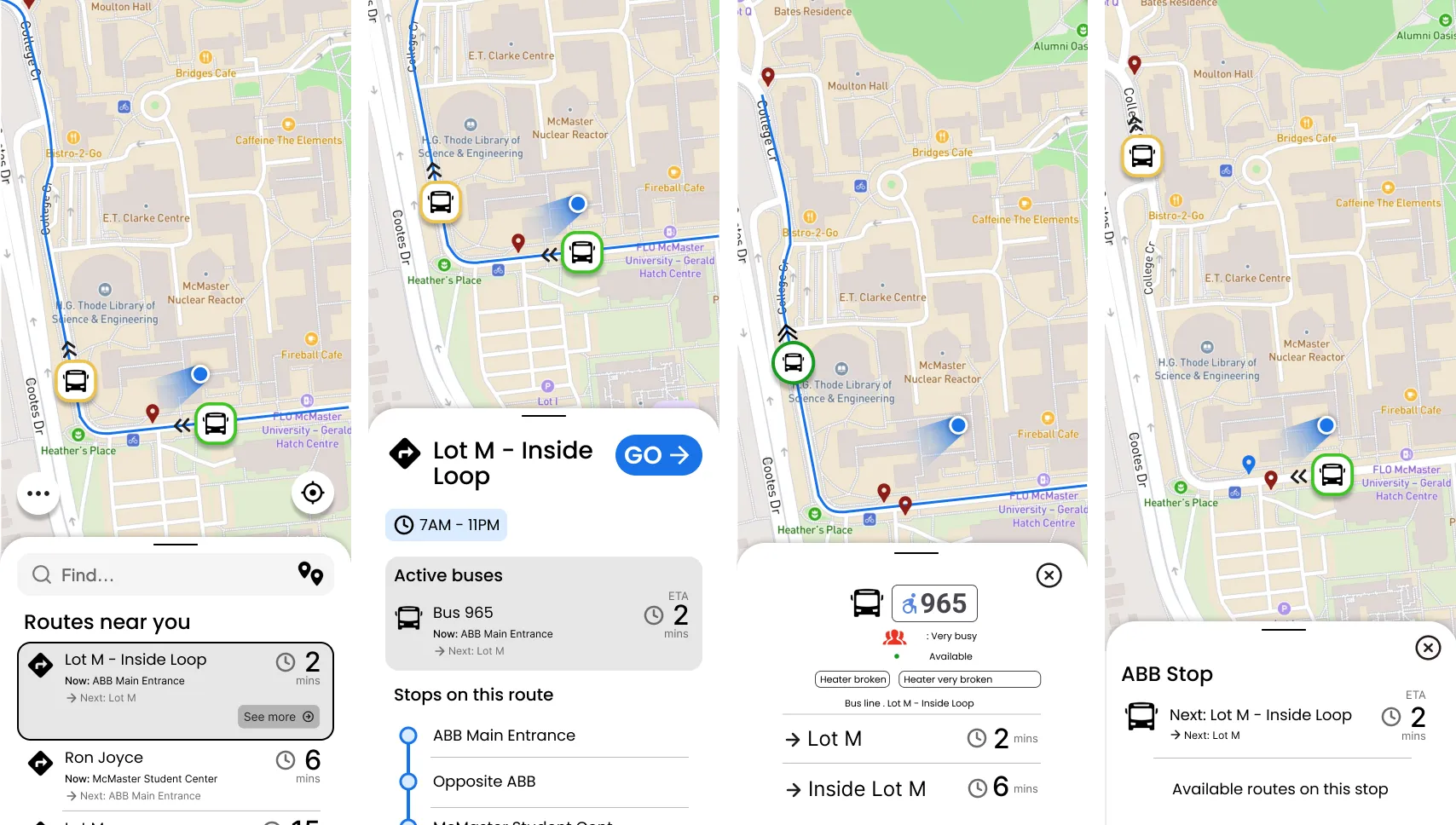
To check the prototypes for qualities like intuitiveness, we ran rounds of usability testing with commuters at McMaster and with the university’s Parking Office team, who manage the shuttle service.
Every participant said the app had all the features they’d expect from a shuttle tracking app, and that the transit information was clear, intuitive and straightforward. Many compared it to the navigation apps they already use.
Nearly 90% of participants were on iOS, and some gestures felt Android-first. Over half said the information could be condensed to reach the relevant ETAs faster.
Testing showed the design was intuitive, professional and easy to understand. The core features and user concerns were covered, but accessibility, information hierarchy and parts of the experience could still improve, and we addressed those in later iterations.
As Trac’s brand identity developed over a few months, we introduced and maintained an internal design system alongside the app: accessible color palettes for themes, consistent typography and iconography from Google Fonts, and templates for common screens to keep the hierarchy consistent.
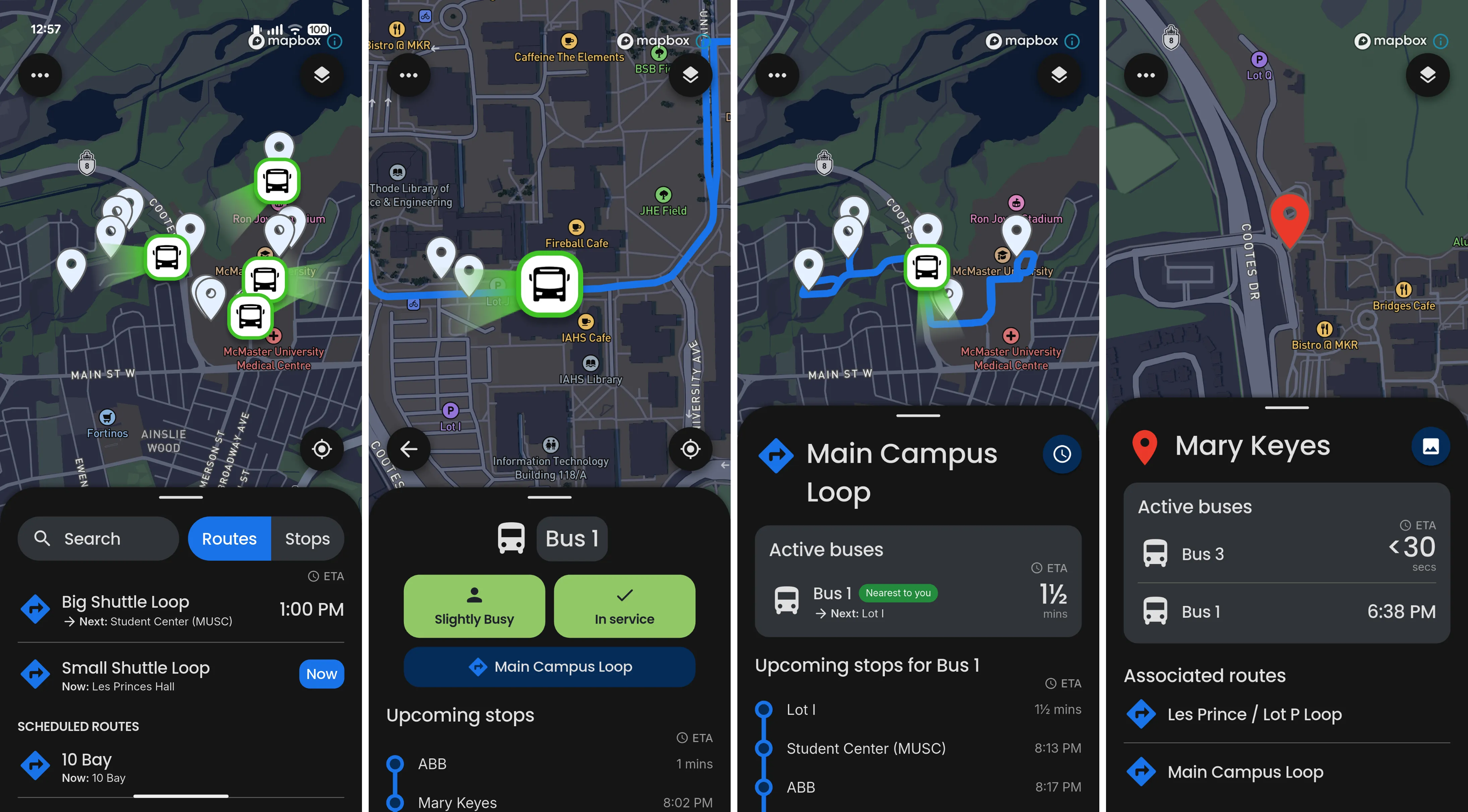
The app was polished over several months to match the Trac brand and design system. Secondary details like stop photos and operating hours were condensed into buttons so the primary information was easier to reach. Bus statuses became scalable, condensed components so the ETAs beneath them were easier to find.
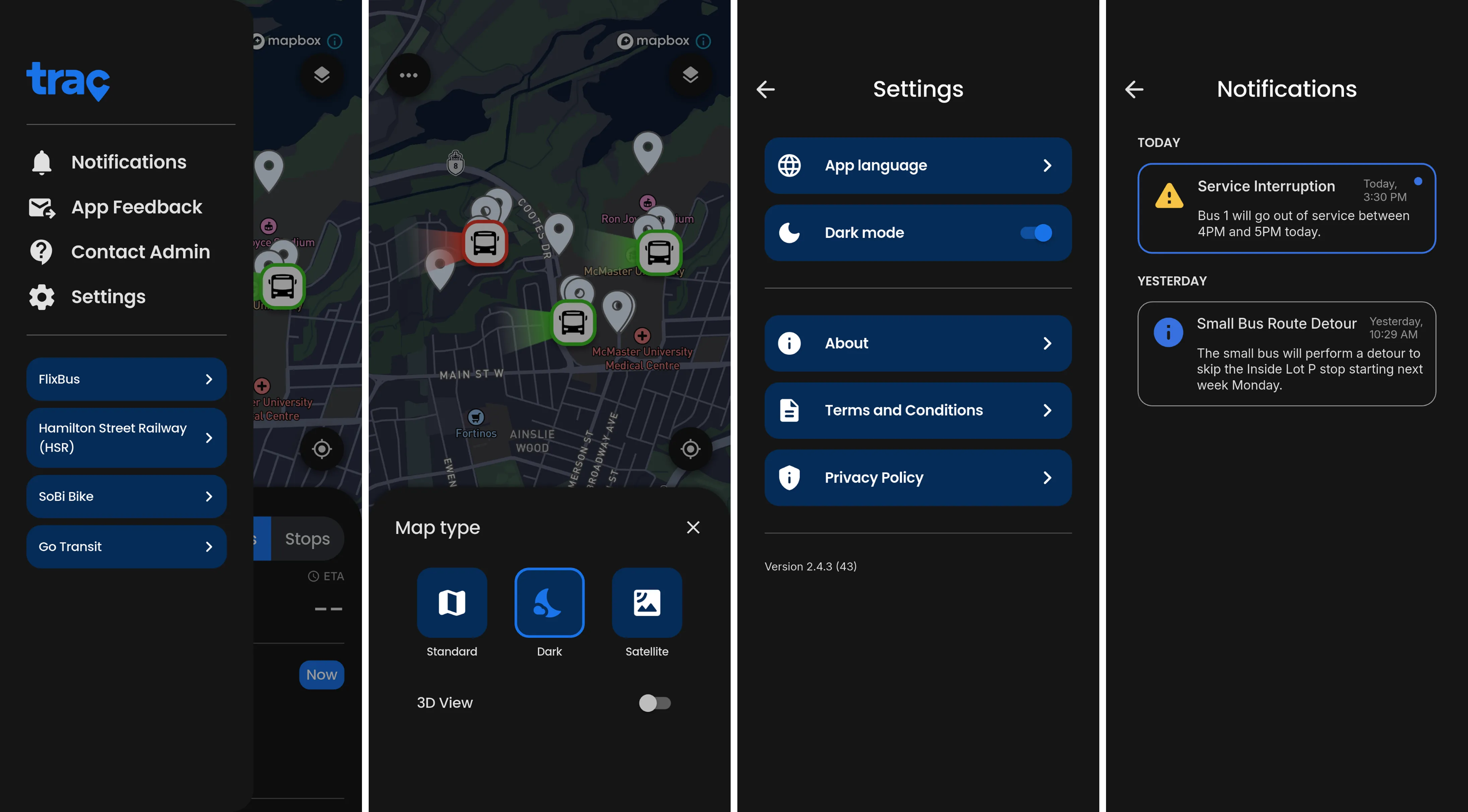
Currently, Trac is partnered with Attridge Transportation to provide the shuttle bus tracking service at McMaster University. Hundreds of commuters use the app every day to help them navigate across campus, increasing service transparency and reducing frustration.
Since its initial release in October, the app has over 4,000 cross-platform downloads, and is continually updated with new feature releases to help improve the app experience. In January 2026, Trac was featured as a McMaster Engineering success story, helping shine light on the positive impact it’s brought to our alma mater community.
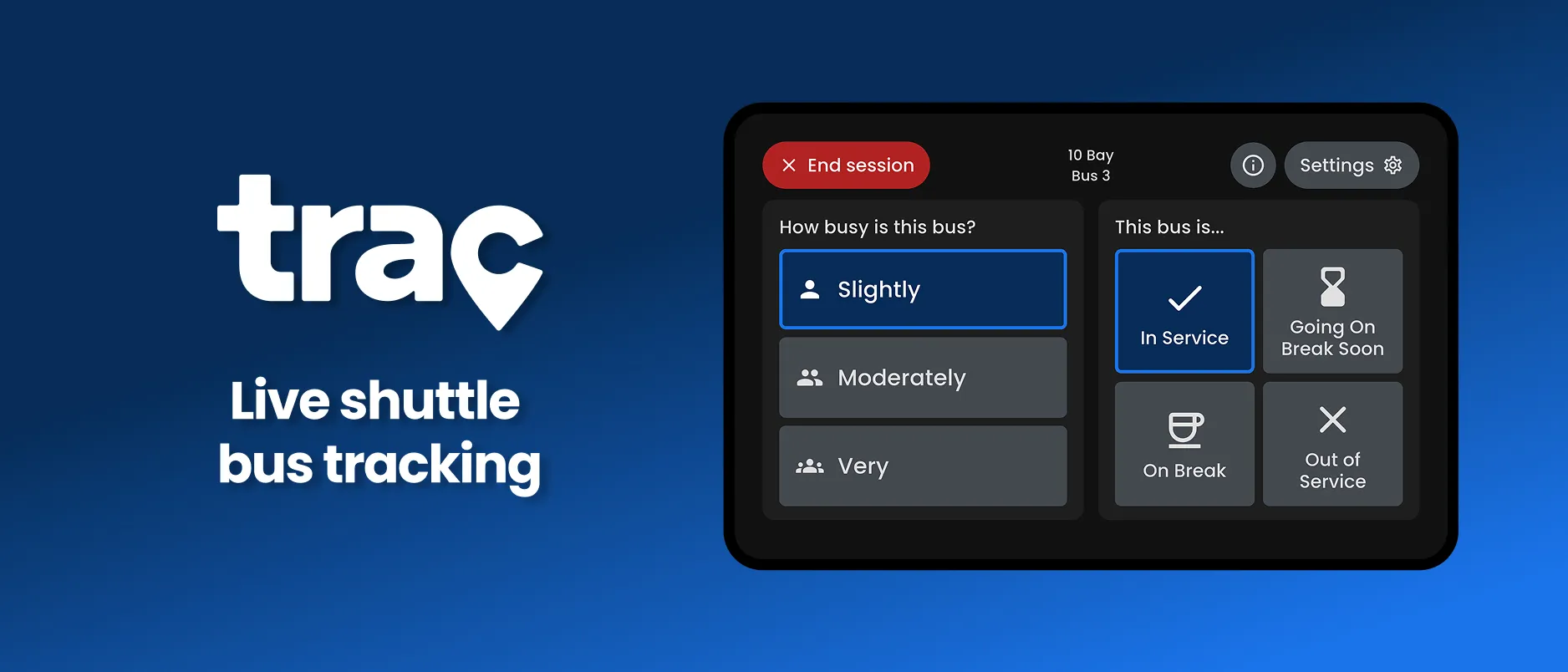
This dash-mounted tablet app allows drivers to broadcast their shuttle's live location, availability, and occupancy in 3 quick taps.
This case study covers the design process for the Trac Driver app. Some technical details and internal information can’t be shared. To learn more about Trac and its shuttle tracking service, visit tracinc.ca.
Trac Driver is a tablet app that streams live location data from shuttle buses to commuters using the Trac Commuter app.
It’s designed for minimal distraction on dash-mounted tablets. Drivers use it to share their bus’s real-time location, how busy it is and whether it’s in service. It also modernizes passenger counting, replacing paper logs with a simple occupancy control.
To broadcast bus locations, the team considered hardware options like GPS trackers and Bluetooth devices. Tablets were more flexible than traditional trackers: they could send details about the bus alongside its location. Mounted on the dashboard within arm’s reach, a tablet would let drivers quickly set up their bus before starting a “session” that broadcasts it live.
Research showed that dashboard tablets were standard practice for other vehicle tracking services, and modern vehicles already have large dashboard screens, so the interaction would feel familiar.
Talking with drivers, we learned they count passengers by hand every so often, so the shuttle service’s administrators can see how busy it is at different times of day.
After more discussion with stakeholders, we defined the app’s core jobs:
This design was unusual: a landscape tablet interface used from a driver’s seat. Unlike most apps, built for many screen sizes, this one had to account for the physical setting of someone reaching for a dashboard-mounted screen.
The live location would stream in the background whenever a driver started a session. So the flow split into two parts: a setup, where drivers choose their bus and route, and the session itself, where they update availability and occupancy.
The first quick paper and Figma prototypes focused on separating setup from the session.
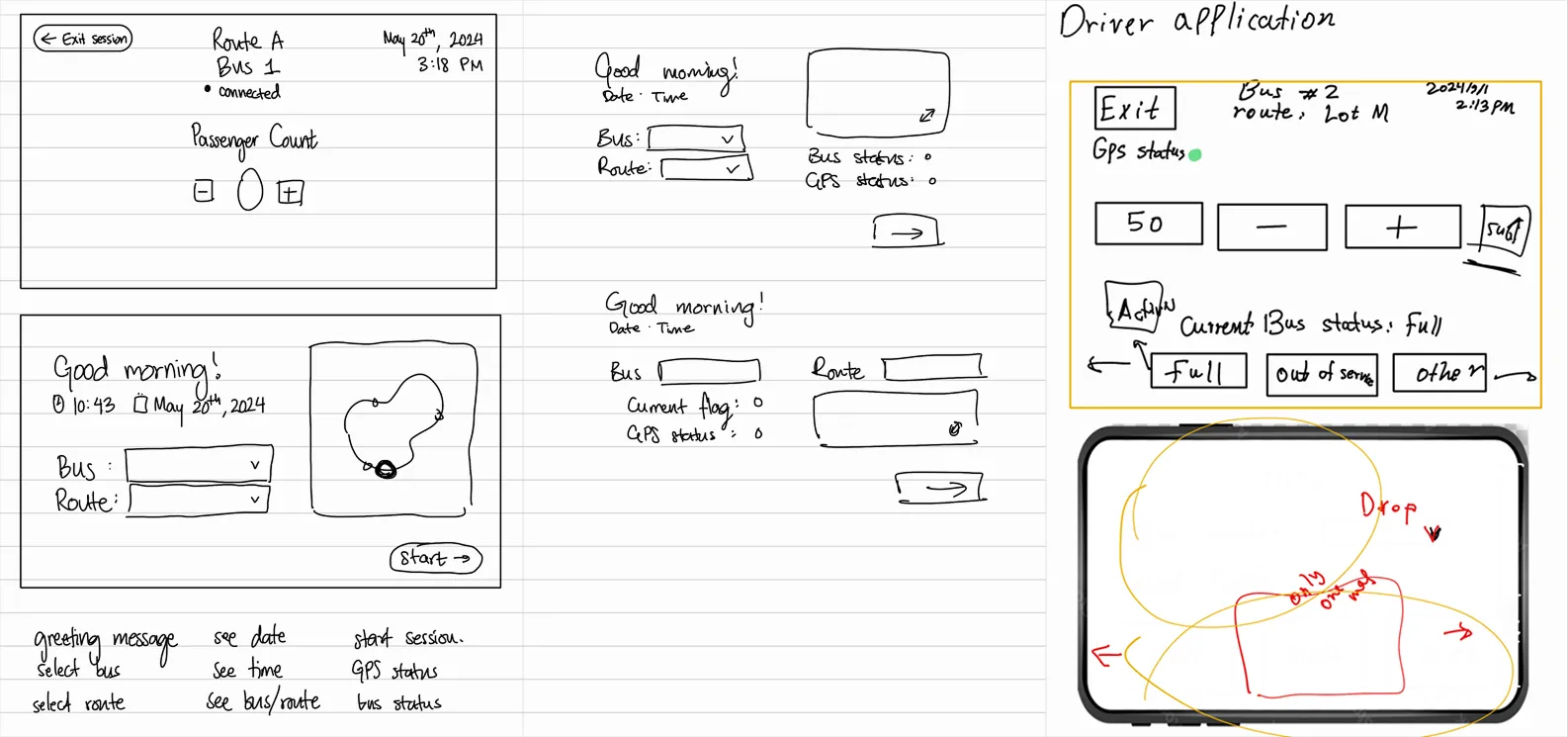
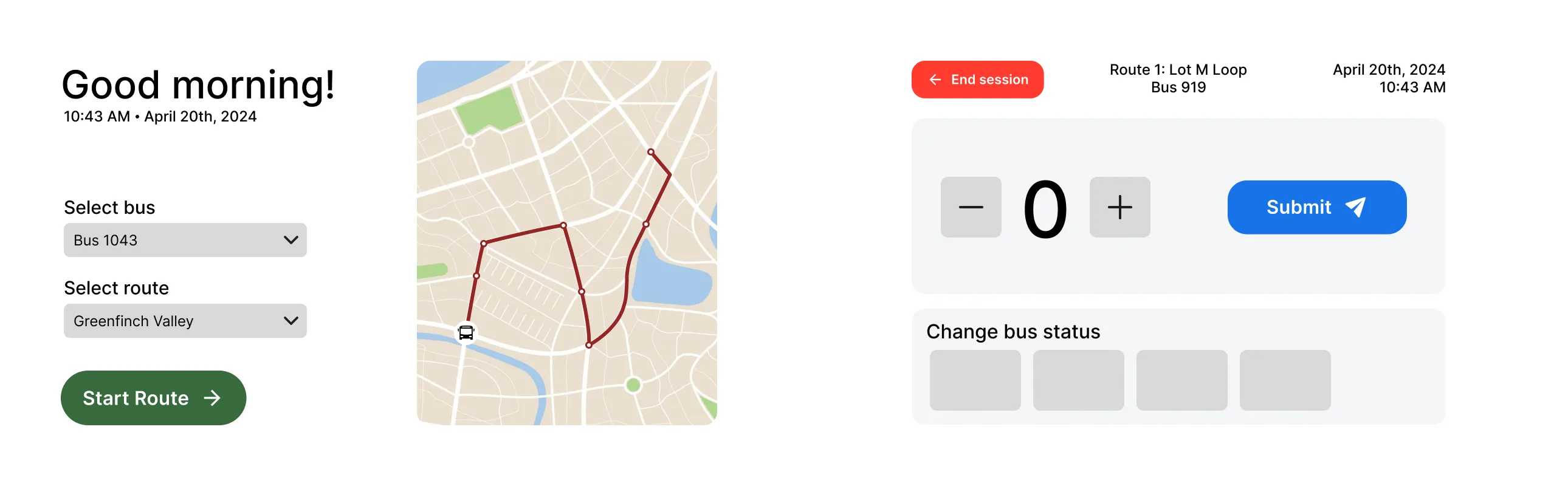
With the functionality and hierarchy in place, we tested these prototypes with drivers. They told us small buttons and text were hard to use, and asked for bigger buttons and simpler wording for staff who aren’t tech-savvy.
I hadn’t considered the drivers’ physical limits enough. Seated, they can only reach so far, and since they’re always moving along their route, interactions have to be quick, simple and hard to get wrong. The whitespace looked clean, but it wasted screen space.
The next iteration used larger, bolder elements to make repetitive passenger counting easier, and moved bus status changes into their own component.
We tested again with drivers and consulted business stakeholders, including the university’s parking office and Attridge Transportation. They pointed out that:
That feedback showed us a chance to simplify the counting process itself. Replacing exact counts with descriptions, from slightly to moderately to very busy, lets drivers judge capacity at a glance and save it with one tap.
The next iteration prioritized large, simple buttons for the repetitive jobs of changing occupancy and availability during a session.
Describing occupancy instead of counting worked much better than manual counts. An “on break” status would help them communicate with commuters.
Selecting a status was confusing; one status at a time would be clearer. The setup screen was crowded, and GPS and connection statuses meant nothing to drivers, since they couldn’t fix them.
We were on the right track. Drivers wanted status selection to be as simple as occupancy, and reminded us that they can’t tinker with the tablet while driving: they can only act on information they understand.
To simplify setup, we tried six-digit bus numbers and QR codes to identify sessions. In practice, buses and drivers were swapped around constantly, and drivers cared most about starting a session quickly, whatever the bus or tablet. The idea only confused them more, so we dropped it and removed bus numbers entirely, since they did nothing for commuters either.
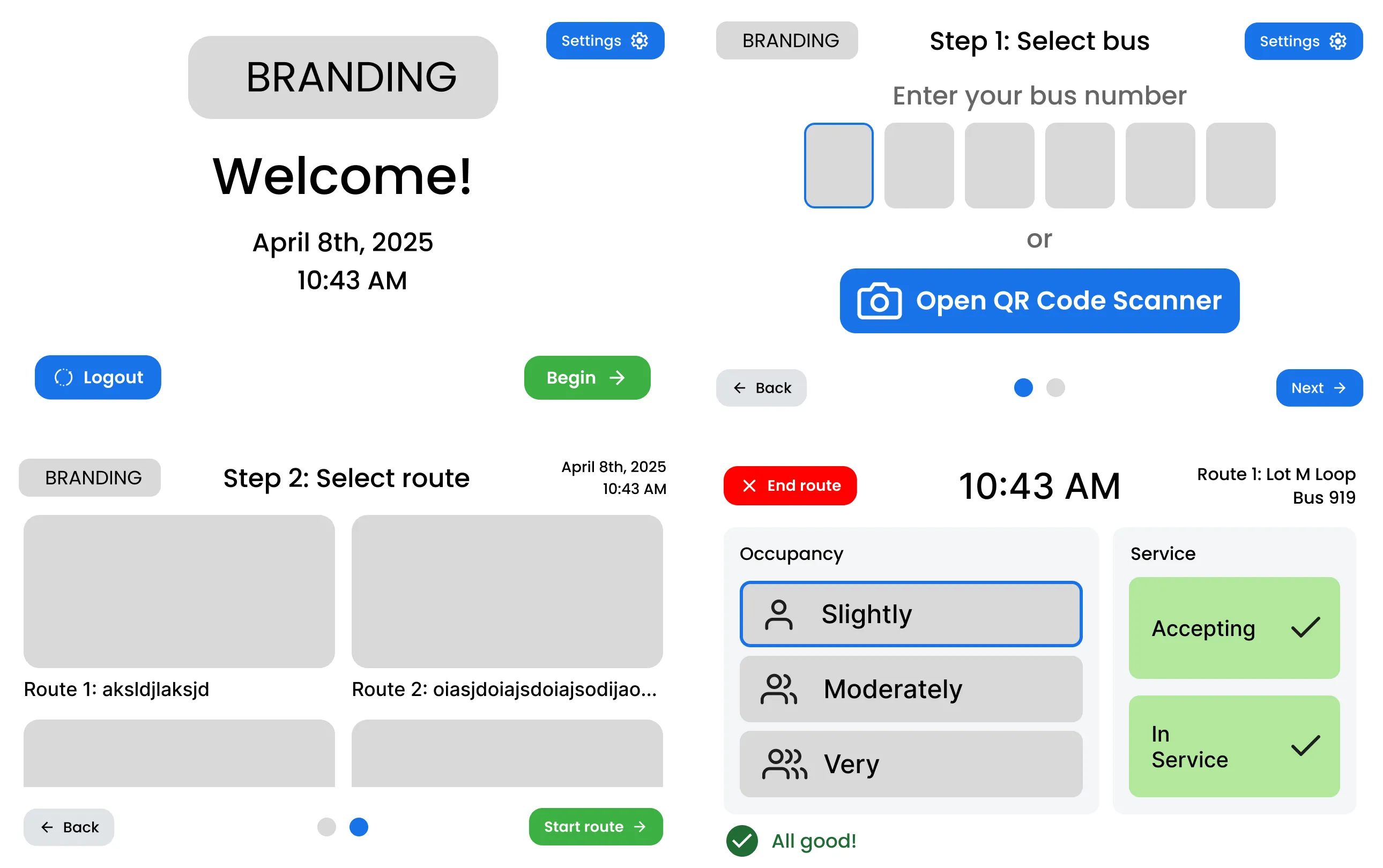
In the end, setup split into a home screen and route selection, trimmed to the essentials. Without bus numbers, drivers can start a session in three taps. GPS statuses and live error messages were removed, replaced by pop-up messages only when needed. On-break and going-on-break statuses were added so commuters can see what’s happening.
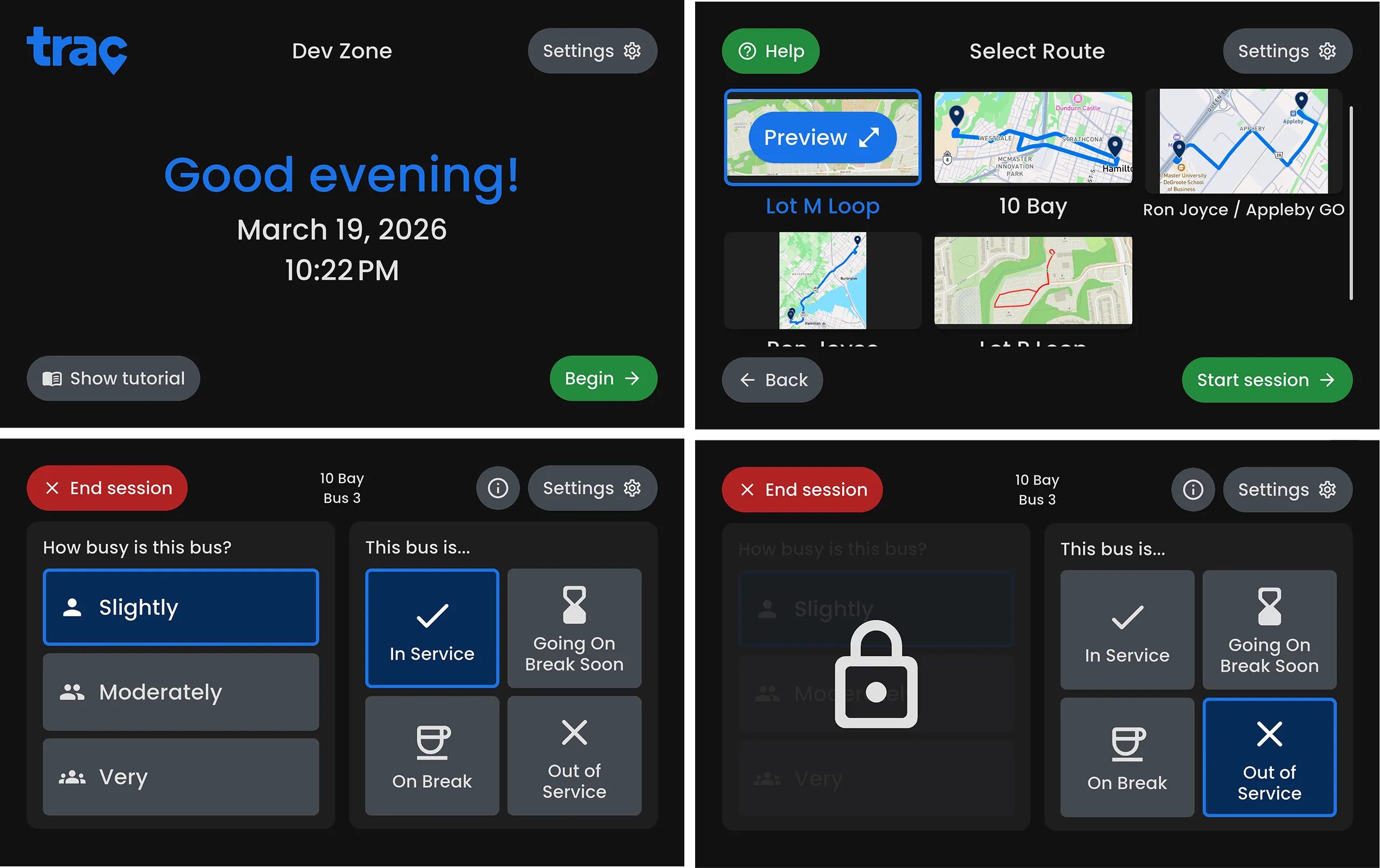
The final app has a consistent interface and hierarchy. The welcome screen invites new and returning drivers to start a session, with a tutorial one tap away. Route selection shows a preview image for each route in a scrolling panel, which can be enlarged. The session screen splits into two clear panes: occupancy on the left, availability on the right. When the bus isn’t in service, the occupancy pane greys out behind a lock. A dark theme helps at night.
The design leans on minimal text and clear icons so drivers can start a session quickly. It turns manual passenger counting into one-tap occupancy updates.
Trac Driver runs on six shuttle buses across five routes at McMaster University, helping hundreds of commuters find their nearest bus every day.
A task manager for hectic schedules, built around priorities and study buddies instead of another to-do list.
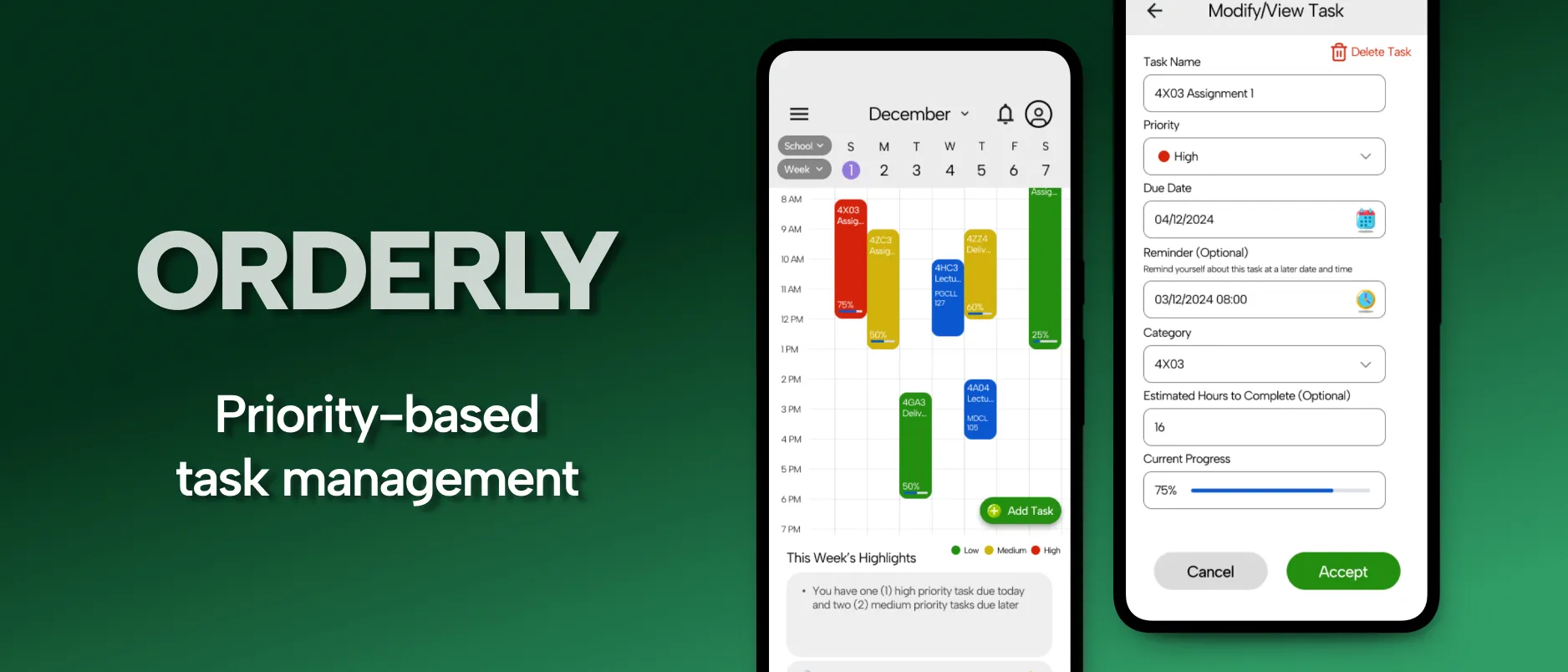
Orderly was designed for McMaster University’s SFWRENG 4HC3 course in Fall 2024. The project covers the ideation, design process and usability testing of a high-fidelity prototype for a task management app for people with hectic daily schedules.
Unlike a standard to-do list, Orderly focuses on priority-based scheduling and study buddy matching, for first-year university students and busy professionals. The aim was to reduce the stress and overhead of managing tasks, which often leads to missed deadlines and poorly spent time.
Our research found that people struggle to know which task to pick up at any given moment, and end up spending more time planning work than doing it.
Our highest priority group. The jump from high school brings a big shift in workload, and students often feel shy or unsure about connecting with peers for study support.
Juggling many responsibilities across business quarters and release cycles. They need much less overhead from managing their tasks.
From this, we defined the core needs:
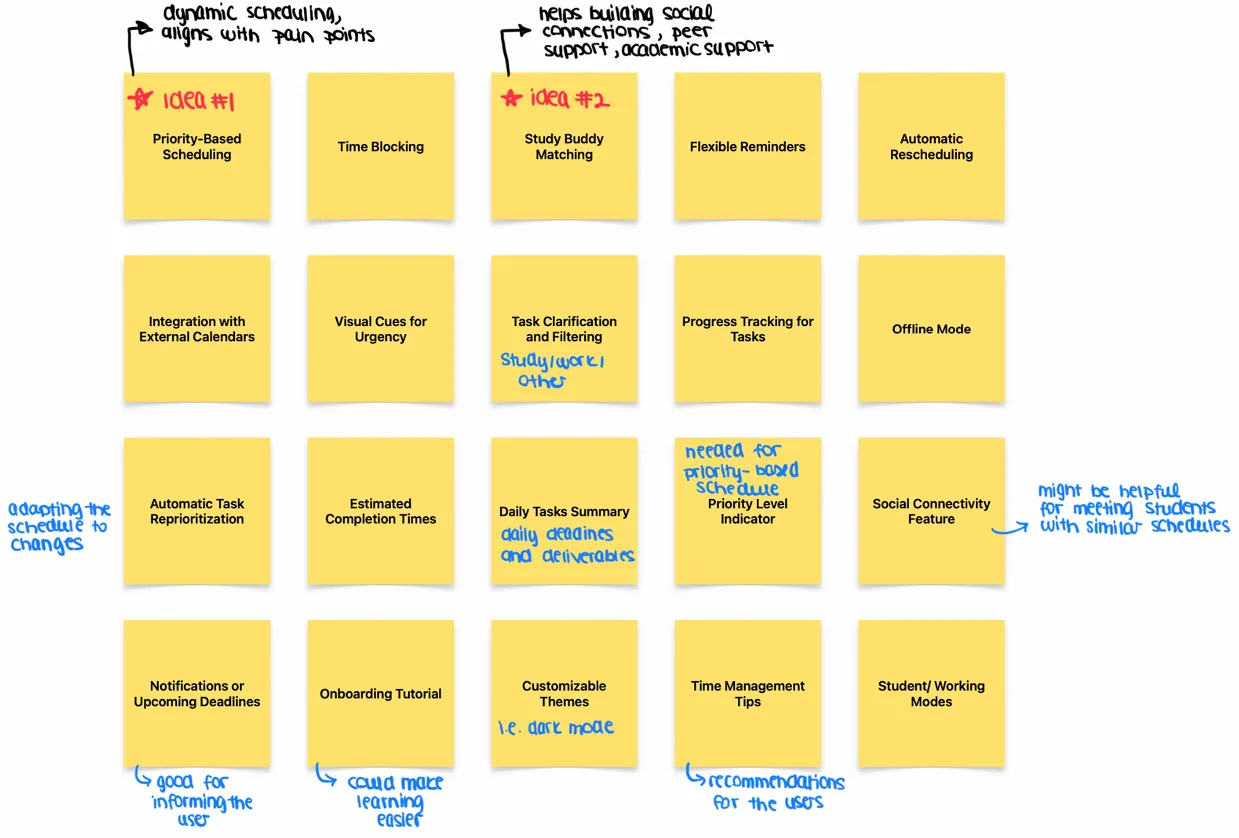
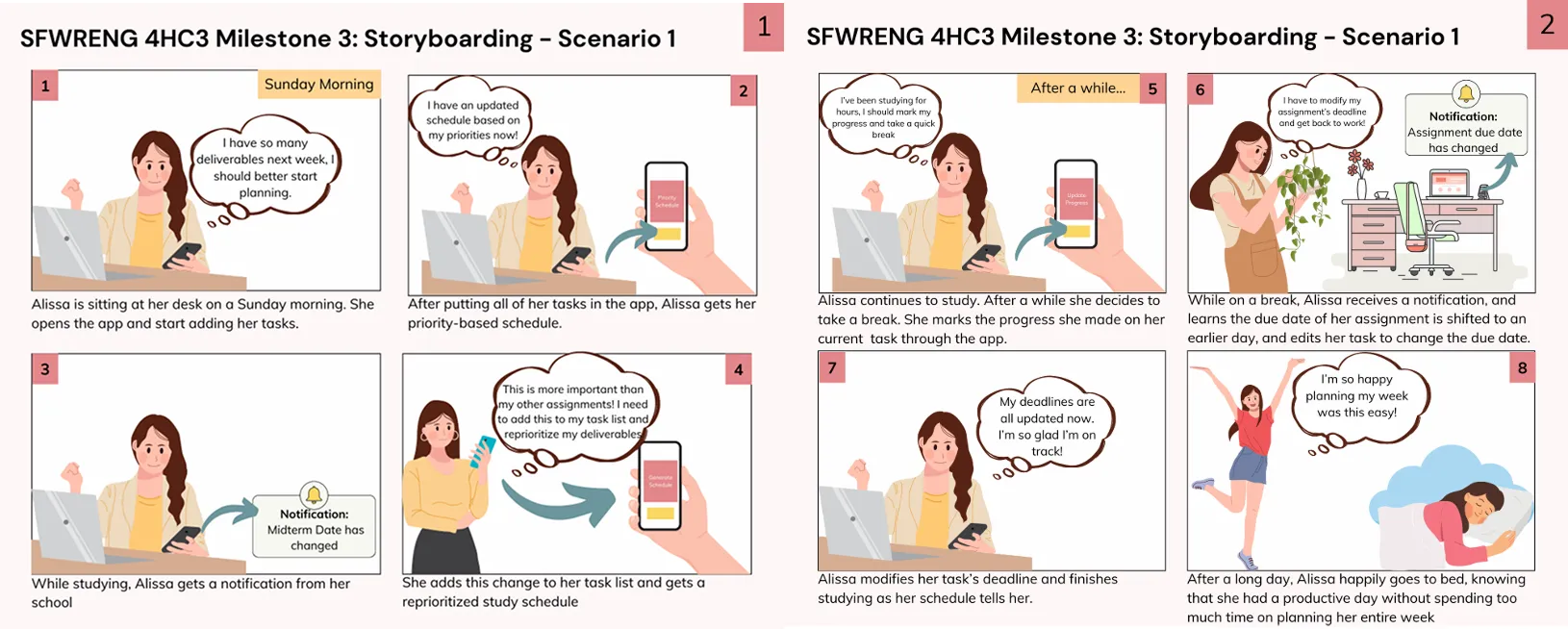
Ideation used brainstorming, scenario analysis and rapid ideation with sticky notes. We generated 20 ideas and chose priority-based scheduling and study buddy matching to build.
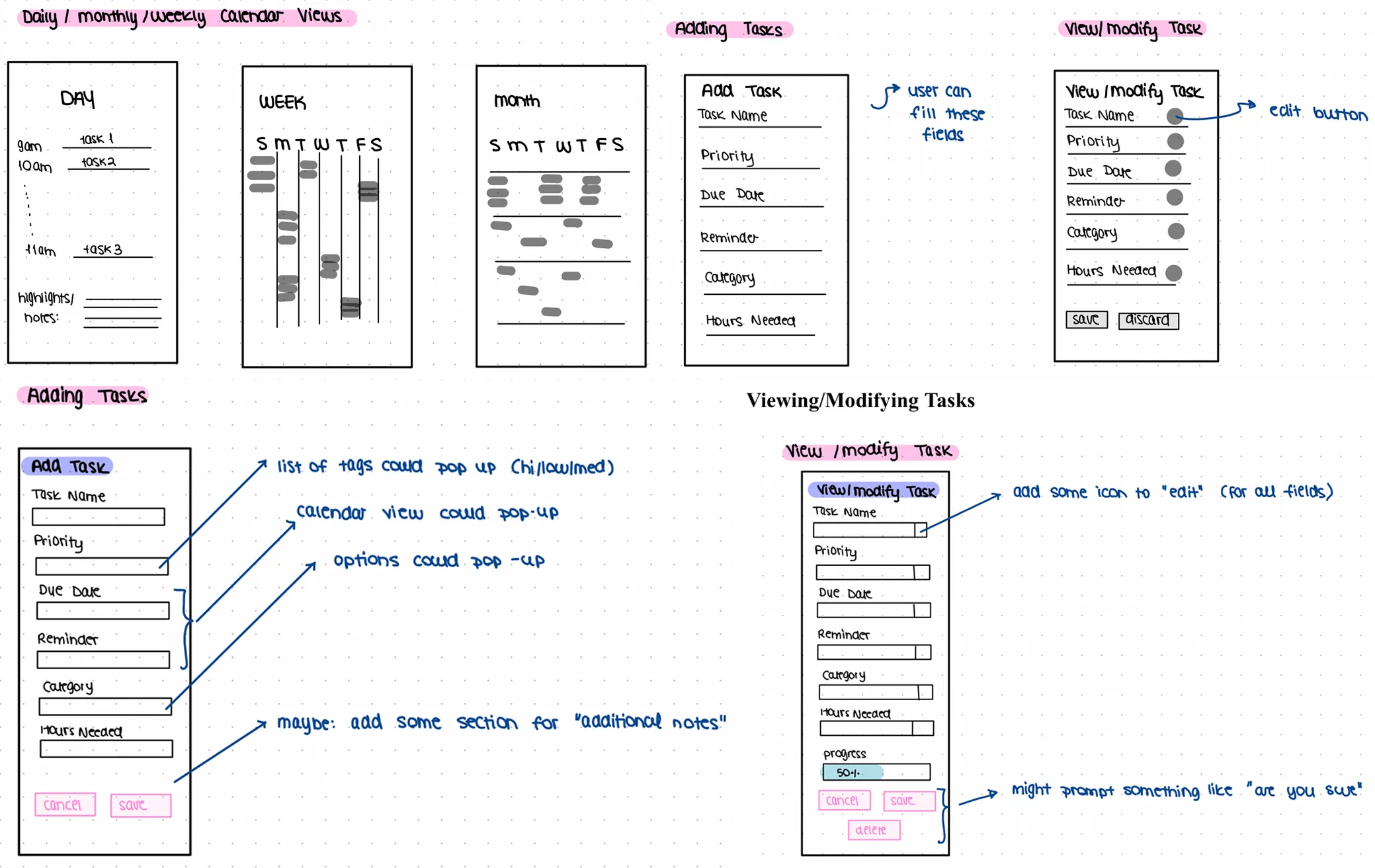
We went through four iterations, from paper monthly and daily views to a low-fidelity Figma wireframe that supported five core functions: viewing commitments, filtering by timeframe, recording and categorizing tasks, reviewing schedule changes, and receiving reminders.
Early sessions with volunteer participants, fourth-year Software Engineering students, found the interface “aesthetically pleasing”, but surfaced some ambiguities:
Participants rated intuitiveness 8 out of 10, and suggested smoother transitions between schedule views and more concrete progress tracking. The core task flow made sense, but secondary features needed clearer guidance.
The high-fidelity prototype answered that feedback. Using the Gestalt principle of proximity, view switching became one clearly labeled dropdown with a down-arrow signifier. A traffic-light model, red, yellow and green for high, medium and low priority, matched how people already think, backed by a new priority legend.
The “Add task” button gained a text label and moved closer to the task list. Deadlines now read “Due in”, shown on each task for immediate context.
Each task shows a progress bar for concrete tracking. Cut-off items signal that lists scroll, and an “Add category” option shows the app can be customized.
Together, these refinements and a polished look reduce the friction of managing a busy schedule, with clear affordances and no ambiguity.
StudyFinder helps McMaster students discover, review and share campus study spaces without wandering from building to building.
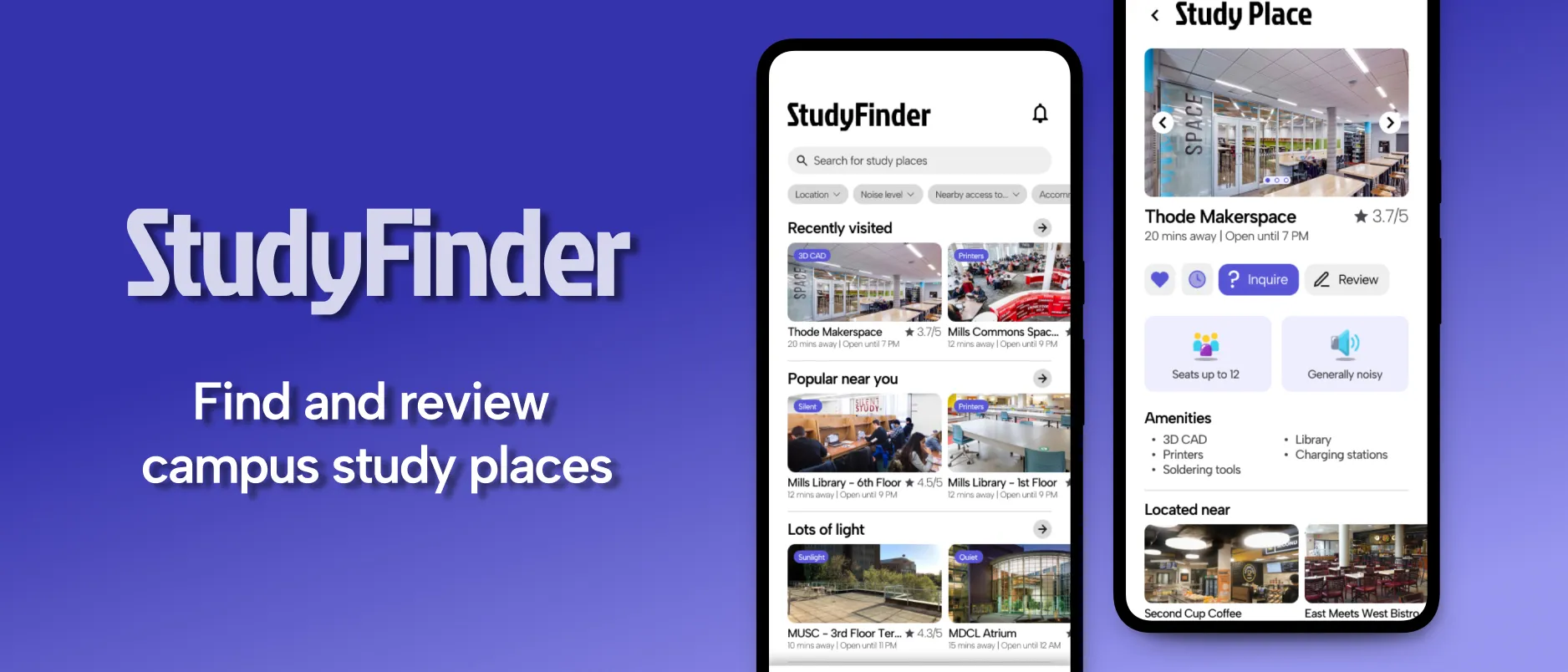
StudyFinder was designed for McMaster University’s SFWRENG 4HC3 course in Fall 2024. It’s a mobile app that helps undergraduate and graduate students find, review and share study spaces on campus, built around filters and toggles so students can search by what they actually need.
Research found two groups with overlapping frustrations but different priorities.
Tech-savvy, with busy schedules and constant movement between classes. They want study spots within a short walk that they can reach quickly.
Tight schedules and resource-heavy work. Their main frustration is not knowing what specialized resources a space has, like 3D printers or lab gear, or whether it suits long sessions.
The core needs came down to three things:
From these, we set the main requirements: search and filter spaces by name and location; filter by environment, noise, hours, capacity and resources; bookmark and review spaces; and ask whether a space has open seats, with a notification when one frees up.
After the initial concept, we built paper prototypes to test the navigation and search flows, making sure filtering stayed intuitive for both groups.
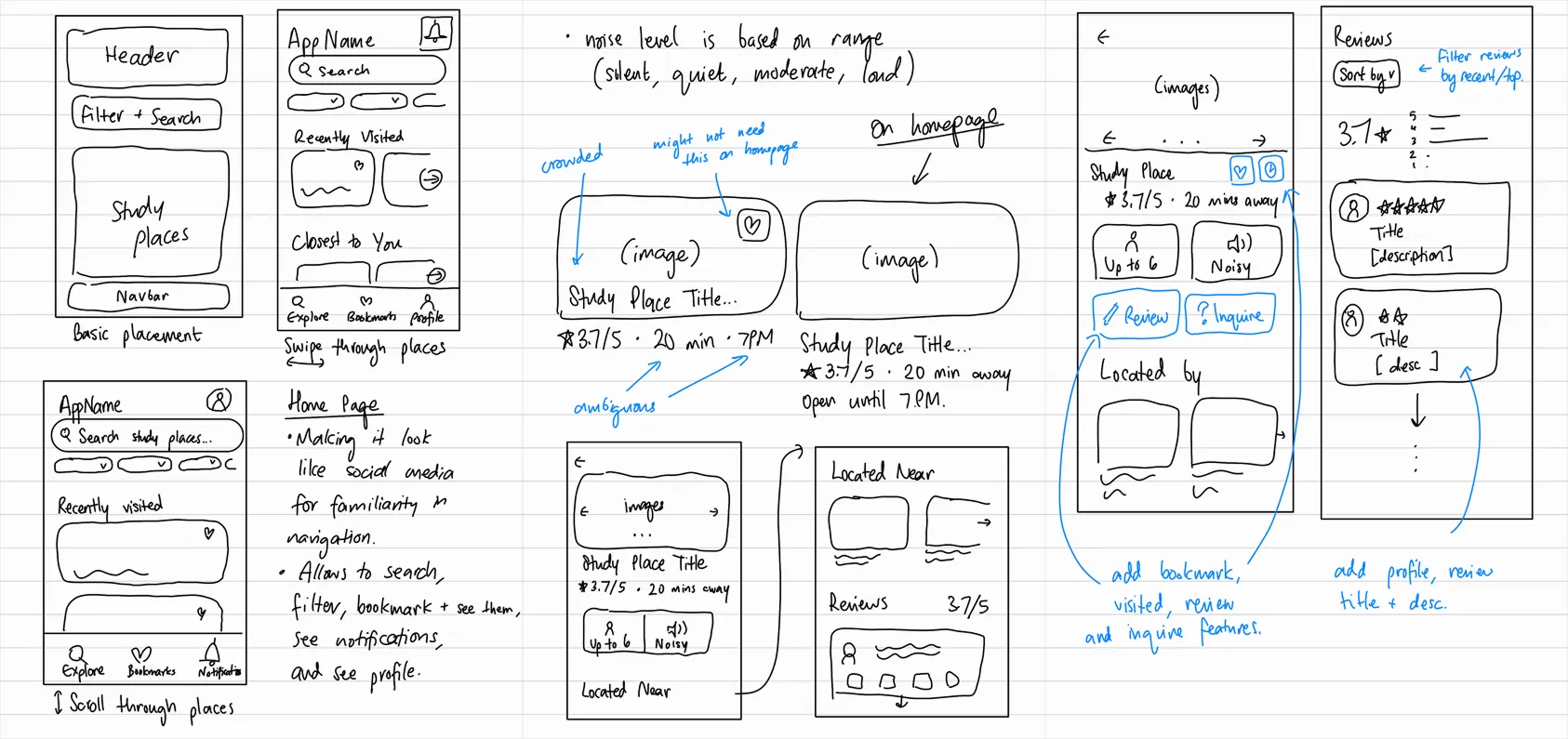
To keep the learning curve low, the design borrowed familiar models from social and service apps like Instagram and Uber Eats.
The high-fidelity Figma prototype has an explore feed that invites scrolling, robust search, and a detailed view for each spot with live occupancy charts and community reviews.
Combining a familiar layout with easy toggles and sorting, students can quickly find and review spaces that suit them. Undergraduates can filter by location and use “Inquire” to see if there’s room. Graduate students can filter further for resources and longer hours. Reviews let everyone share their experience and get a feel for a space.
Real-time shuttle bus tracking application to provide live bus location and real-time ETAs
Developed client-facing React features and improvements for EIP, an enterprise network design platform
Streamlined Java backend workflows for an internal scheduling application
Designed reusable website components in React and Bootstrap for funding platform MVP
I'm a recent graduate from Software Engineering at McMaster University. I live at the intersection of software and design, driven by a passion for building products that leave a tangible, positive impact on user experience. My goal is to build and design products that feel like second nature to users.
Design at every level is about building for people. I believe in a process of constant tuning: refining based on user intuition until the experience feels effortless.
Last night’s Raptors game, the latest One Piece chapter, my black belt in karate, the last YouTube video essay I binged, or my favourite Mario and Sonic games growing up.